Course
Data Analysis in Excel
3 hr
155.3K
Practice and track your progress.
Continue with GoogleIn this guide, I’ll show you how to count unique values in Excel. I'll also show you special cases, such as how to handle case-sensitivity, or how to count unique values based on one or more conditions.
To keep building your Excel skills, enroll in our Excel Fundamentals skill track to become an expert.
The ideas sometimes get confused, but unique values and distinct values are not the same thing.
For the first half of the article, I will focus on different ways to count unique values in Excel. But, if you have landed here by accident and are really looking to count distinct values, I have you covered for this, also, if you want to scroll to the later section.
There are two common ways to count unique values in Excel.
The easiest way to count unique values is by using the UNIQUE() function and the COUNTA() function. The UNIQUE() function extracts all unique values from a range, and COUNTA() counts how many unique values are present.
COUNTA(UNIQUE(range, false, true))For example, I applied the following formula to a small dataset, and it gave me unique values.
=COUNTA(UNIQUE(A2:A8, false, true))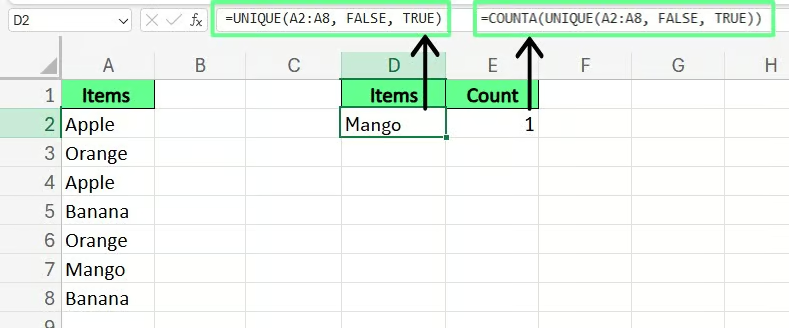
If you used this syntax instead, =COUNTA(UNIQUE(A2:A8)), which doesn't have the third parameter that we set as TRUE, then we would get back as our result a distinct count, not a unique one. Setting TRUE in the third argument tells the function to return a unique count. Both things are within the UNIQUE() function, so it may be a bit confusing at first.
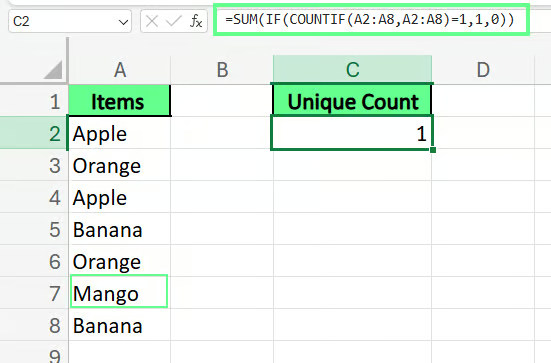
If you are a little unsure of the nuances of the UNIQUE() function, or if you don't have Excel 365, know that we can also combine SUM() with IF() and COUNTIF() to count the unique values.
=SUM(IF(COUNTIF(range, range)=1,1,0))For example, I have data in the range A2:A8 and want to count the unique values, so I write the following formula:
SUM(IF(COUNTIF(A2:A8, A2:A8)=1,1,0))Here COUNTIF() goes through the list and checks how many times each name appears. If a name shows up just once, it counts it as 1. If it appears more than once, it gets a higher number. Then, IF() filters those results to keep the 1s as they are but turns everything else into 0. At last, SUM() adds up all the 1s and gives us the total count of unique values.
Sometimes, our dataset contains mixed data types and we have to analyze them independently. This may look a bit daunting at first, but it’s possible in Excel. Let’s look at two methods — one for counting unique text values and another for unique numbers.
If you want to count unique text values, combine the ISTEXT(), COUNTIF(), and SUM() functions. ISTEXT() checks if a value is a text, while COUNTIF() counts how many times each value appears, and SUM() totals the distinct text entries.
I applied the following formula on a sample data, and it instantly showed me how many unique text values are present.
=SUM(IF(ISTEXT(A2:A9)*COUNTIF(A2:A9,A2:A9)=1,1,0))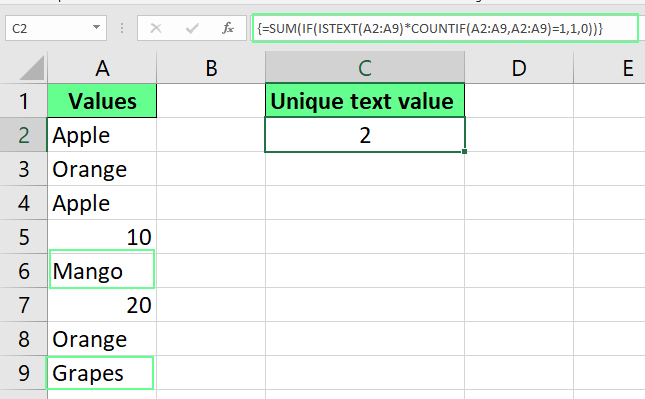
If you want to count unique numbers instead of text, use the same formula but replace the ISTEXT() with ISNUMBER().
ISNUMBER() will only consider numeric values, while COUNTIF() and SUM() handle the uniqueness. I tweaked the above formula on the same data, and it now shows me the number of unique numeric values only:
=SUM(IF(ISNUMBER(A2:A9)*COUNTIF(A2:A9,A2:A9)=1,1,0))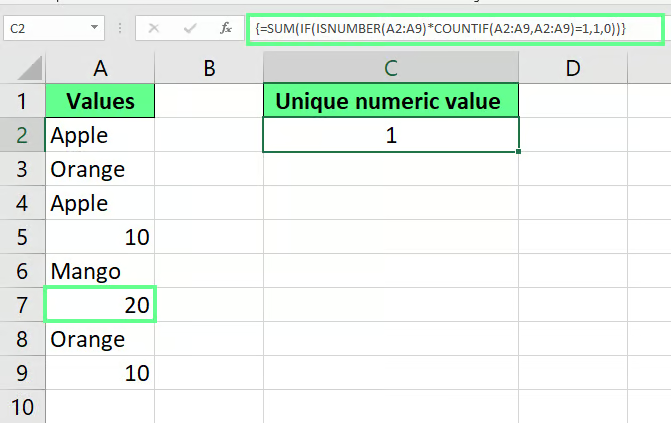
Now that we’ve covered the basic methods for counting unique values, let’s explore some advanced techniques.
To count the unique values based on a specific condition, I use this syntax:
=IFERROR(ROWS(UNIQUE(FILTER(range, criteria_range=criteria))), 0)In this formula, FILTER() filters out the range based on specific criteria, UNIQUE() removes duplicates, ROWS() counts the results, and IFERROR() prevents errors by returning Not Found if no matches are found.
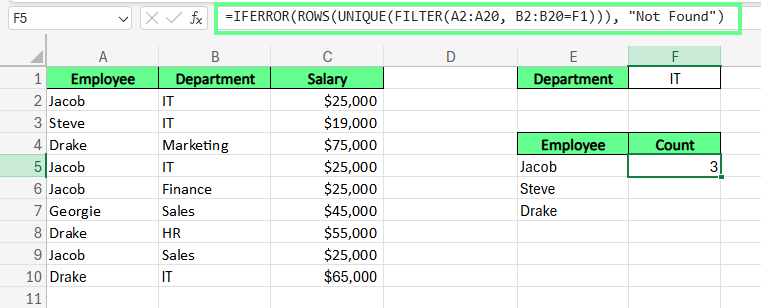
Let’s say I have a list of Employees and their Departments, and I need to count how many unique employees work in a specific department. I will use the following formula:
=IFERROR(ROWS(UNIQUE(FILTER(A2:A20, B2:B20=F1))), "Not Found")Here, A2:A10 represents the range of employee names I want to filter and B2:B10=F1 checks which employees belong to the department, which is written in F1.
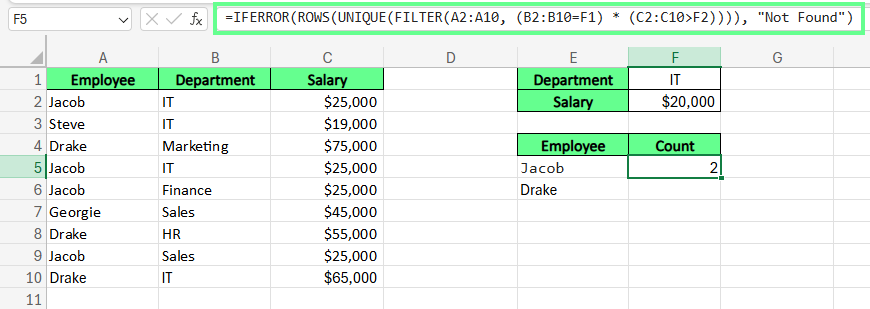
If I want to count unique employees in a specific department whose salaries are less than $50,000, I use this formula:
=IFERROR(ROWS(UNIQUE(FILTER(A2:A10, (B2:B10=F1) * (C2:C10>F2)))), "Not Found")Here, A2:A10 represents the range of employee names, B2:B10=F1 checks which employees belong to the department, written in F1, and C2:C10>F2 checks if the salary is less than the amount given in F2.
By default, Excel is case-sensitive. For example, Apple and APPLE are considered different. To spot such cases, I create a helper column with the following formula:
=IF(SUM((--EXACT($A$2:$A$11,A2)))=1,"Unique","Duplicate")And now, to get the count of unique values, I use the COUNTIF() function like this:
=COUNTIF(B2:B11,"Unique")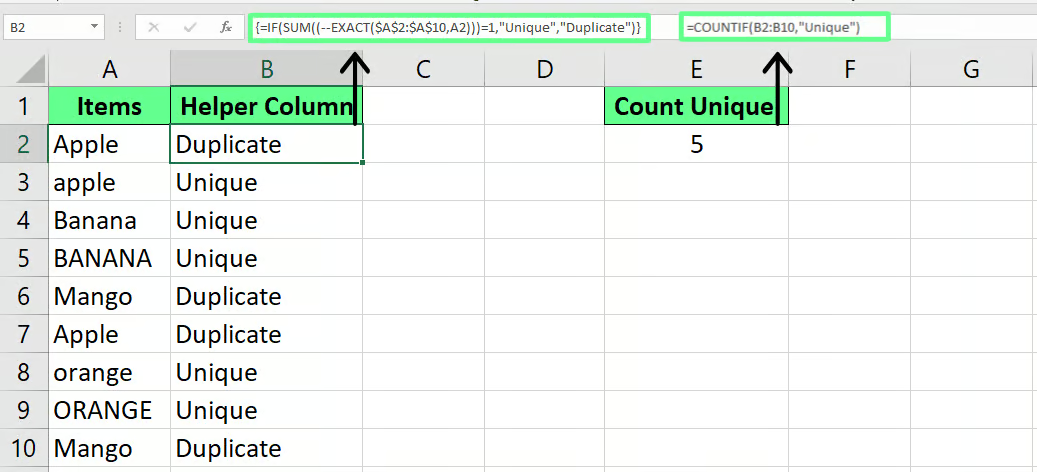
Now, as a final section, in case you had really wanted to count distinct values instead, I will show you several methods to count distinct values. But first, here is a table so you can see the differences:
| Criteria | Unique Values | Distinct Values |
|---|---|---|
| Definition | Values that appear only once in a dataset. | All different values in a dataset, including one occurrence of each duplicate. |
| Duplicates included? | No, duplicates are excluded. | Yes, but only one instance of each value is kept. |
| Example | In [1, 2, 2, 3, 4], unique values are [1, 3, 4]. |
In [1, 2, 2, 3, 4], distinct values are [1, 2, 3, 4]. |
| Use case | Finds values that occur only once. | Gets a list of all distinct values. |
To count distinct values in Excel, you can combine the COUNTIF() and SUM() functions. The COUNTIF() function checks how many times each value appears in a given range. Then, SUM() adds up the values returned by COUNTIF(), giving the total number of distinct entries.
=SUM(1/COUNTIF(range, range))Let’s say I want to find the distinct values in the range A2:A8. I enter the following formula:
=SUM(1/COUNTIF(A2:A8, A2:A8))Here, the COUNTIF() function checks how many times each value appears in a list.
1/COUNTIF(A2:A8, A2:A8) divides 1 by the number of times each value appears. For example, if a number appears twice, each instance becomes 0.5 (1/2). If it appears three times, it will be 0.33 (1/3).
Since we don’t want these fractions, we can use the SUM() or SUMPRODUCT() to add up all the values. Every duplicate’s fractions combine to 1, and distinct values stay 1 since 1/1 = 1:
=SUMPRODUCT(1/COUNTIF(A2:A8, A2:A8))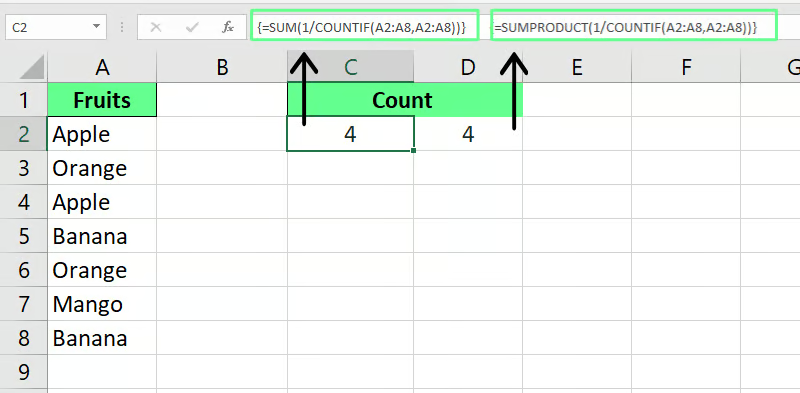
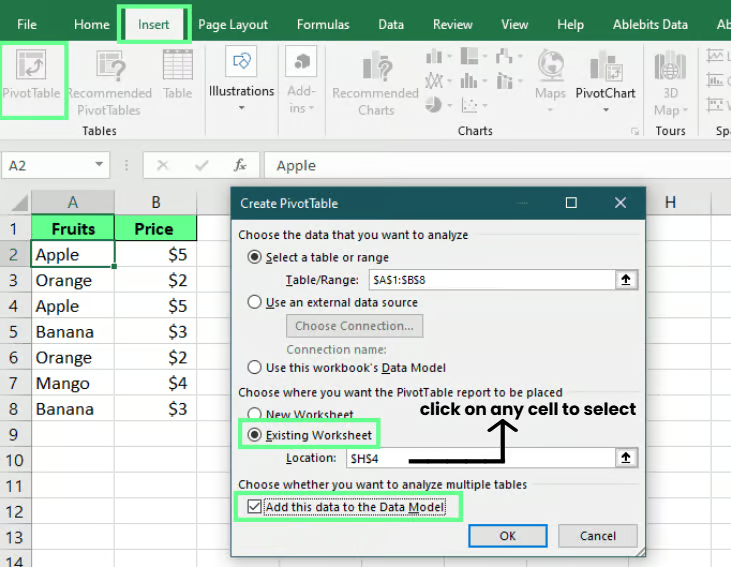
Excel 2013 and Excel 2016 have included a built-in feature to count distinct values in a PivotTable. To make use of this, you first have to create a PivotTable by selecting data: Go to Insert and select PivotTable. A dialog box will appear — from this dialog box, choose Existing Worksheet and checkmark the Add this data to the Data Model box.
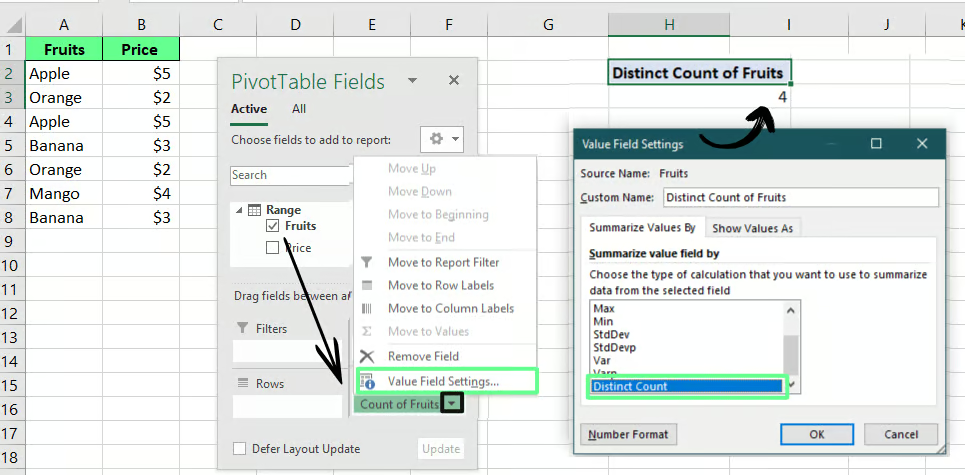
Next, drag your desired column into the Values field. In my case, I drag the Fruits column because I want to count its distinct values. Then, click on Value Field Settings from the drop-down menu. A pop-up will appear — from there, select Distinct Count. You can even give this column a custom name, but that's optional.
If you don't like working with formulas, use the advanced filters instead.
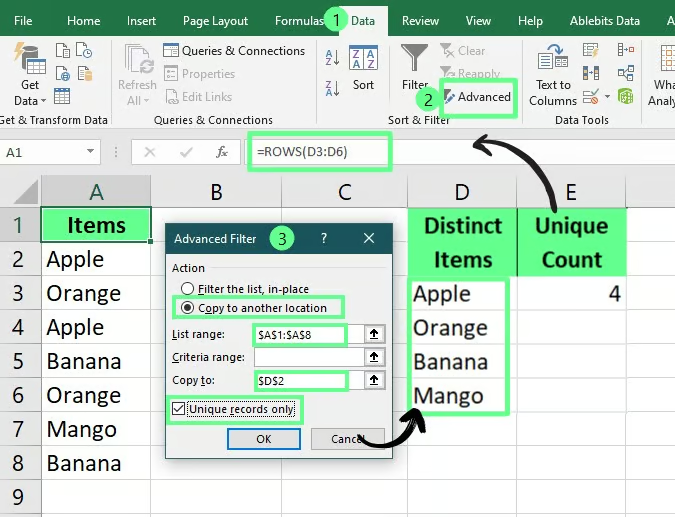
In this example, I have a dataset and I want to find distinct values using advanced filters. Now, for this, I select the range from where I want to find the particular value. Then, I go to the Data tab and click Advanced.
Now, in the Advanced Filter dialog box, I choose Copy to another location, and in the Copy to field, I enter the destination cell where I want my list to appear. Then check the Unique Records Only box and click OK.
Once I have a list of unique values, I then calculate the count of these unique values by using the ROWS() function:
=ROWS(D2:D5)Even though the option in the below image reads Unique records only, it actually extracts distinct values.
If you want to count distinct values repeatedly, use VBA (Visual Basic for Applications), where we write code once, and it automates the whole process every time we call the function with its name.
Here’s how you can use this: press Alt + F11 and go to the Module option under the Insert tab. A new module will appear, and you can paste your code here.
This is the code I created to count the distinct values:
Function CountUnique(rng As Range) As Integer
    Dim dict As Object
    Set dict = CreateObject("Scripting.Dictionary")

    Dim cell As Range
    For Each cell In rng
        If Not dict.exists(cell.Value) And cell.Value <> ""

Then,
            dict.Add cell.Value, Nothing
        End If
    Next cell

    CountUnique = dict.Count
End Function
Then, press Ctrl + S to save it and ALt + Q to close the VBA editor. Now, you can call this custom function anywhere in the sheet and specify the range from which to find the distinct values. In my case, it's called CountUnique() so every time I call this function with a specified range, it gives me a count value:
=CountUnique(A2:A8)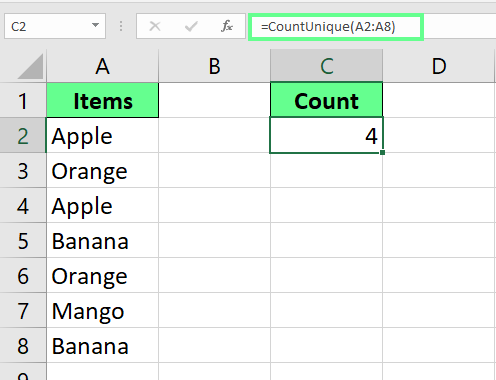
I’ve covered key formulas, PivotTables, and VBA macros for counting unique and distinct values. Each method has its benefits, but you should choose the one that suits your needs and supports your Excel version.
If you want to sharpen your Excel skills, check out our Excel Fundamentals skill track and Data Preparation in Excel course.
Gain the skills to maximize Excel—no experience required.
Learn Excel with DataCamp
Course
Course
Practice and track your progress.
Continue with GoogleTutorial
Josef Waples
5 min
Tutorial
Laiba Siddiqui
9 min
Tutorial
Laiba Siddiqui
15 min
Tutorial
Laiba Siddiqui
13 min
Tutorial
Islam Salahuddin
10 min
Tutorial
Laiba Siddiqui
6 min