Course
Introduction to R
4 hr
3.1M
R packages are collections of functions and data sets developed by the community. They increase the power of R by improving existing base R functionalities, or by adding new ones. For example, if you usually work with data frames, you’ve probably heard of dplyr or data.table, two of the most popular R packages.
A package typically bundles R code (and sometimes compiled C or Fortran code), documentation, tests, and data sets into a single unit you can share and reuse.
The basic information about a package is provided in the DESCRIPTION file, where you can find out what the package does, who the author is, what version the documentation belongs to, the date, the type of license its use, and the package dependencies.
Note that you can also use the alternative stats link to see the DESCRIPTION file.
Besides finding the DESCRIPTION files such as cran.r-project.org or stat.ethz.ch, you can also access the description file inside R with the command packageDescription("package"), via the documentation of the package help(package = "package"), or online in the repository of the package.
For example, for the “stats” package, these ways will be:
packageDescription("stats")
help(package = "stats")A repository is a place where packages are located so you can install them from it. Although you or your organization might have a local repository, typically, they are online and accessible to everyone. Three of the most popular repositories for R packages are:
There are a few different options when it comes to installing R packages.
The most common way to install an R package is from CRAN. You just need the package name and a call to install.packages("package"). For packages hosted elsewhere (Bioconductor, GitHub), the installation method differs—I’ll cover each below.
For example, the oldest package published in CRAN and still online and being updated is the vioplot package, from Daniel Adler.
Its original publication date is in the package DESCRIPTION file.
To install it from CRAN, you will need to use:
install.packages("vioplot")After running this, R prints messages about the download source, installation progress, and whether it succeeded. Here’s a condensed example of what you might see:
Installing package into '/home/username/R/x86_64-pc-linux-gnu-library/4.6'
(as 'lib' is unspecified)
trying URL 'https://cloud.r-project.org/src/contrib/vioplot_0.4.0.tar.gz'
...
* DONE (vioplot)
The output tells you where the package was installed, where it was downloaded from, and whether the installation succeeded. Depending on your operating system, these messages can vary.
Finally, to install more than one R package at a time, just write them as a character vector in the first argument of the install.packages() function:
install.packages(c("vioplot", "MASS"))Remember that CRAN is a network of servers (each of them called a “mirror”), so you can specify which one you would like to use. If you are using R through the RGui interface, you can do it by selecting it from the list that appears just after you use the install.packages() command. On RStudio, the mirror is already selected by default.
You can also select your mirror by using the chooseCRANmirror(), or directly inside the install.packages() function by using the repo parameter. You can see the list of available mirrors with getCRANmirrors() or directly on the CRAN mirrors page.
Example: to use the Ghent University Library mirror (Belgium) to install the vioplot package, you can run the following:
install.packages("vioplot", repos = "https://lib.ugent.be/CRAN")Bioconductor packages are installed through the BiocManager package. First, install BiocManager from CRAN:
install.packages("BiocManager")Then install Bioconductor packages by name:
BiocManager::install(c("GenomicFeatures", "AnnotationDbi"))To install or update all core Bioconductor packages, call BiocManager::install() without arguments. The current release is Bioconductor 3.23, which requires R 4.6.0. See the official install guide for details.
As you have read above, each repository has its own way of installing a package from them, so in the case that you are regularly using packages from different sources, this behavior can be a bit frustrating. A more efficient way is probably to use the devtools package to simplify this process because it contains specific functions for each repository, including CRAN.
You can install devtools as usual with install.packages("devtools"), but you might also need to install Rtools on Windows, Xcode command line tools on Mac, or r-base-dev and r-devel on Linux.
After devtools is installed, you will be able to use the utility functions to install other packages. The options are:
install_bioc() from Bioconductor,
install_bitbucket() from Bitbucket,
install_cran() from CRAN,
install_git() from a git repository,
install_github() from GitHub,
install_local() from a local file,
install_svn() from a SVN repository,
install_url() from a URL, and
install_version() from a specific version of a CRAN package.
For example, to install the babynames package from its GitHub repository, you can use:
devtools::install_github("hadley/babynames")After you spend more time with R, it is normal that you use install.packages() a few times per week or even per day, and given the speed at which R packages are developed, it is possible that sooner than later you will need to update or replace your beloved packages. In this section, you will find a few functions that can help you to manage your collection.
installed.packages()remove.packages(), in your case:remove.packages("vioplot")old.packages()update.packages()install.packages("vioplot")For project-level dependency management, the renv package (maintained by Posit) creates isolated, reproducible package environments—similar to Python’s virtual environments.
install.packages("renv")

# Initialize renv in your project
renv::init()

# Take a snapshot of current packages
renv::snapshot()

# Restore packages from the lockfile
renv::restore()
renv records exact package versions in a renv.lock file, so collaborators can reproduce your environment with renv::restore(). This is especially useful for teams and long-running projects.
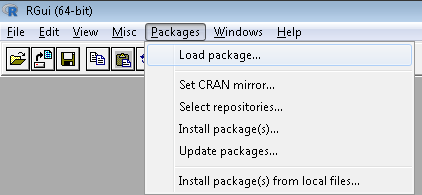
If you prefer a graphical interface, both RStudio and the RGui include package management tools. In RStudio (now developed by Posit), go to Tools → Install Packages and type the package name in the dialog. For a full walkthrough of RStudio, see our RStudio tutorial.

While in the RGui you will find the utilities under the Packages menu.
After a package is installed, you are ready to use its functionalities. If you just need a sporadic use of a few functions or data inside a package, you can access them with the notation packagename::functionname(). For example, since you have installed the babynames package, you can explore one of its datasets.
To see what functions and data a package contains, use help(package = "babynames").
To access the births dataset inside the babynames package, you just type:
babynames::births## # A tibble: 6 x 2
## year births
## <int> <int>
## 1 2009 4130665
## 2 2010 3999386
## 3 2011 3953590
## 4 2012 3952841
## 5 2013 3932181
## 6 2014 3988076If you will make more intensive use of the package, then maybe it is worth loading it into memory. The simplest way to do this is with the library() command.
Please note that the input of install.packages() is a character vector and requires the name to be in quotes, while library() accepts either a character or a name and makes it possible for you to write the name of the package without quotes.
After this, you no longer need the package::function() notation, and you can directly access its functionalities as any other R base functions or data:
births## # A tibble: 6 x 2
## year births
## <int> <int>
## 1 2009 4130665
## 2 2010 3999386
## 3 2011 3953590
## 4 2012 3952841
## 5 2013 3932181
## 6 2014 3988076You may have heard about the require() function: it is indeed possible to load a package with this function, but the difference is that it will not throw an error if the package is not installed.
So use this function carefully!
You can read more about library() vs require() in Yihui Xie’s post on the topic. To learn R fundamentals, including package management, see our guide to learning R.
Speaking about the library() function, sometimes there is confusion between a package and a library, and you can find people calling “libraries” packages.
Please don’t get confused: library() is the command used to load a package, and it refers to the place where the package is contained, usually a folder on your computer, while a package is the collection of functions bundled conveniently.
A quote from Hadley Wickham, Chief Scientist at Posit (formerly RStudio), and instructor of the Writing Functions in R DataCamp course, puts it well:
@ijlyttle a package is like a book, a library is like a library; you use library() to check a package out of the library #rsats
— Hadley Wickham (@hadleywickham) December 8, 2014
Another good reminder of this difference is to run the function library() without arguments. It will provide you with the list of packages installed in different libraries on your computer:
library()Unlike install.packages(), library() only loads one package per call. A common workaround is lapply():
packages <- c("dplyr", "ggplot2", "tidyr")
lapply(packages, library, character.only = TRUE)
You can also use the pacman package, which installs missing packages and loads them in one step with p_load().
To unload a given package, you can use the detach() function. The use will be:
detach("package:babynames", unload = TRUE)As you have read in the above sections, the DESCRIPTION file contains basic information about a package, and even though that info is very beneficial, it will not help you to use this package for your analysis. Then you will need two more sources of documentation: help files and vignettes.
As in basic R, the commands ?() and help() are the first source of documentation when you are starting with a package. You remember probably that you can get a general overview of the package using help(package = "packagename"), but each function can be explored individually by help("name of the function") or help(function, package = "package") if the package has not been loaded, where you will typically find the description of the function and its parameters and an example of application.
For example, you might remember that to obtain the help file of the vioplot command from the vioplot package, you can type:
help(vioplot, package = "vioplot")Tip: you can also use another way to see what is inside a loaded package. Use the ls() command in this way:
library(babynames)
ls("package:babynames")
## [1] "applicants" "babynames" "births" "lifetables"Another very useful source of help included in most of the packages is the vignettes, which are documents where the authors show some functionalities of their package in a more detailed way. Following vignettes is a great way to get your hands dirty with the common uses of the package, so it's a perfect way to start working with it before doing your own analysis.
As you might remember, the information of vignettes contained in a given package is also available in its DOCUMENTATION file locally or online, but you can also obtain the list of vignettes included in your installed packages with the function browseVignettes(), and for a given package, just include its name as a parameter: browseVignettes(package="packagename"). In both cases, a browser window will open so you can easily explore and click on the preferred vignette to open it.
If you prefer to stay in the command line, the vignette() command will show you the list of vignettes, vignette(package = "packagename"), the ones included in a given package, and after you have located the one you want to explore, just use the vignette("vignettename") command.
For example, one of the most popular packages for visualization is ggplot2. You can learn more in DataCamp’s Introduction to Data Visualization with ggplot2 course. You might probably have installed it on your computer already, but if not, this is your chance to do it and test your new install.packages() skills.
Assuming you have already installed ggplot2, you can check what vignettes are included on it:
vignette(package = "ggplot2")Two vignettes are available for ggplot2, “ggplot2-specs” and “extending-ggplot2”. You can check the first one with:
vignette("ggplot2-specs")On RStudio, this will be displayed on the Help tab on the right, while in the RGui or on the command line this will open a browser window with the vignette.
You can find more options for getting help from R on the R-Project site.
At this point, you should be able to install and get the most from your R packages, but there is still one final question in the air: where do you find the packages you need?
The typical way of discovering packages is just by learning R. In many tutorials and courses, the most popular packages are usually mentioned. For example, the Cleaning Data in R course covers tidyr in depth.
For each topic you would like to cover in R, there is probably an interesting package you can find.
But what if you have a specific problem and you don’t know where to start, for example, as I stated in the introduction of this post, what if you are interested in analyzing some Korean texts?
Or what if you would like to collect some weather data? Or estimate evapotranspiration?
You have reviewed several repositories, and yes, you know you could check the list of CRAN packages, but with over 21,000 options, it is easy to get lost.
Let's look at some alternatives!
One alternative can be to browse categories of CRAN packages, thanks to the CRAN task views. That's right! CRAN, the official repository, also gives you the option to browse through packages. The task views are basically themes or categories that group packages based on their functionality.
As you can see below, all packages that have to do with genetics will be categorized in the "Genetics" task view:
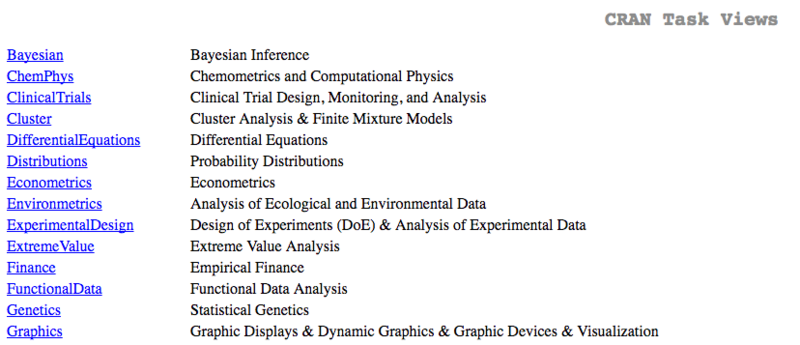 Taking the example of the Korean texts, you can easily find the package that you need by navigating to the Natural Language Processing task view. There, you can read through the text to find the package that can handle your texts, or you can do a simple CTRL+F and type in the keyword that you're looking for.
RDocumentation aggregates package documentation from CRAN, Bioconductor, and GitHub into a single searchable interface. It ranks results by download popularity, so widely used packages surface first.
R-Universe is a newer alternative that provides package pages with build status, documentation, and dependency information. Both are free and worth bookmarking.
R packages are the backbone of the R ecosystem. Whether you install from CRAN, Bioconductor, or GitHub, the core workflow is the same: install once with install.packages() or BiocManager::install(), then load per session with library().
I didn’t cover how to create your own packages here. If that’s your next step, Hadley Wickham’s R Packages book is the definitive resource, and DataCamp’s Developing R Packages course walks through the process hands-on.
If you’re looking to strengthen your R foundations more broadly, I’d recommend starting with the Introduction to R course or exploring the full R course catalog.
Top R Courses
Course
Course
Course
Tutorial
Elena Kosourova
12 min
Tutorial
Abid Ali Awan
10 min
Tutorial
Minoo Ashtiani
8 min
Tutorial
Karlijn Willems
15 min
Tutorial
Francisco Javier Carrera Arias
6 min
Tutorial
DataCamp Team
8 min


